
How to Transcribe Audio in Word (2025 Guide)
Unlock Word's hidden transcription feature. This step-by-step guide covers how to transcribe audio files in Word, plus 3 major limitations you must know.
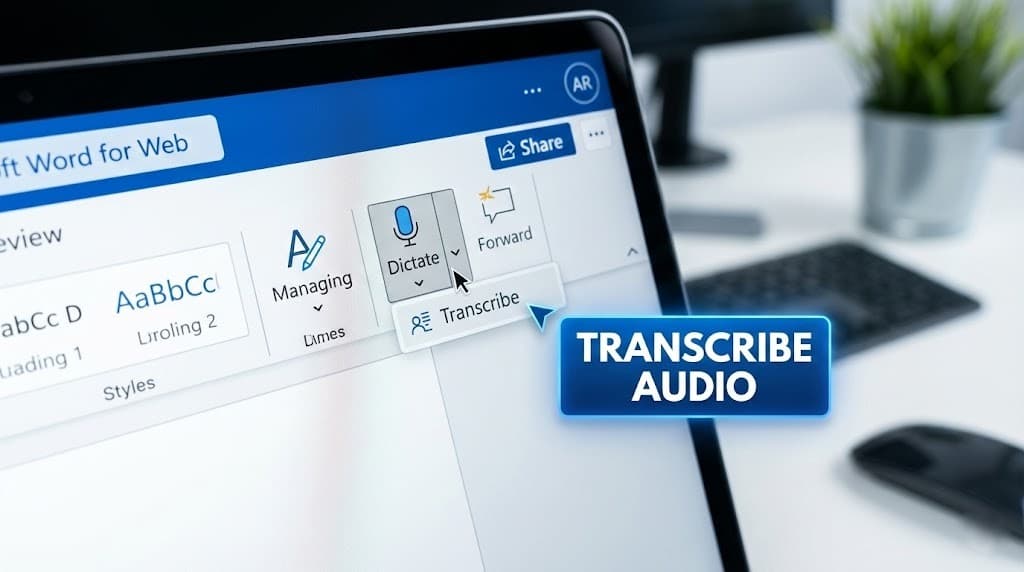
You have an MP3 recording of a meeting, lecture, or brain dump. You need it turned into editable text fast. Microsoft Word can do it – but the feature is buried, limited, and not as smart as dedicated AI tools.
In 2025, with Copilot integrations expanding, Word's transcription is more powerful than ever. But most users miss it because it's web-only and capped. This complete guide covers how to transcribe audio files in Word online, step-by-step, plus troubleshooting, limits, and when to upgrade.
Key takeaways
- Web-Only Access: Transcribe audio to text in Word primarily via Word for the Web – desktop apps lag behind.
- Subscription Required: Free dictation works anywhere; uploading audio files needs Microsoft 365 Personal/Business (~$6-12/month).
- Strict Limits: 300 minutes/month standard (up to 30,000 with Copilot Pro at $20/month extra).
- Verbatim Output: Gets every "umm" and pause – no auto-summaries without Copilot add-on.
Table of contents
- What You Need Before Starting
- Step 1: Accessing the Hidden Menu
- Step 2: Uploading and Transcribing Audio Files
- Step 3: Editing and Exporting Your Transcript
- The 3 Hidden Downsides of Word Transcription (2025)
- Troubleshooting Common Errors
- Word Transcription vs. Dedicated AI Tools (Full Comparison)
- When to Use Word vs. Upgrade to AI
- Real-World Use Cases for 2025
- FAQ – Top Questions on Transcribing Audio in Word
What You Need Before Starting
Before diving in:
- Microsoft 365 Subscription: Essential for file uploads. Check at account.microsoft.com. Free trial available.
- Supported Formats: .mp3, .wav, .m4a, .mp4 (up to 200MB/300 min).
- Browser: Chrome/Edge for best results (Safari works but slower).
- Stable Internet: Processing happens in the cloud – spotty WiFi = failed jobs.
Pro Tip: For mobile users, record via OneDrive app first, then upload.
Step 1: Accessing the Hidden Menu
The Transcribe tool isn't in your desktop Word app – it's cloud-based for AI power.
- Open Chrome/Edge and go to office.com. Sign in with your Microsoft account.
- Launch a New Blank Document in Word for the Web.
- In the Home tab, spot the Dictate microphone icon.
- Click the dropdown arrow next to it.
- Select Transcribe. The pane opens on the right.
If missing? Update your browser or check subscription. Official guide: Microsoft Support on Transcribe.
Step 2: Uploading and Transcribing Audio Files
Now, convert your audio to text in Word online.
- In the Transcribe pane, click Upload audio (skip "Transcribe a recording" for pre-recorded files).
- Choose your file (.mp3/.wav/etc.). Max 200MB.
- Hit Transcribe. Wait 1-5 min (cloud processing; don't refresh).
- Review the sidebar: Text with timestamps, speaker labels (if detected).
- Click Insert into document – choose full transcript or speakers only.
Accuracy: 85-95% for clear English; accents/noise drop to 70%. For live dictation: Click microphone instead.
Step 3: Editing and Exporting Your Transcript
Raw output needs tweaks.
- Edit Inline: Click text in pane; fix errors, delete fillers.
- Speaker Labels: Auto-detected; rename via "Edit speakers."
- Timestamps: Toggle on/off for precision.
- Export: Copy-paste or save doc. For summaries, prompt Copilot: "Summarize this transcript." (Pro only).
The 3 Hidden Downsides of Word Transcription (2025)
Word shines for basics, but here's the friction in 2025.
1. The 300-Minute Monthly Cap
Standard limit: 300 min/user/month. Copilot Pro bumps to 30,000 min. Heavy users (podcasters, journalists) exhaust it fast. No overage fees – just wait. Details: Microsoft's Copilot Quota Update.
2. Verbatim "Wall of Text" Output
Includes every stutter/filler – no auto-cleaning. A 30-min ramble = 4,000 words of mess. Copilot can summarize, but it's extra cost/effort.
3. Desktop/Mobile Limitations
No easy mobile uploads (app redirects to web). File size cap: 200MB. Poor for on-the-go pros.
Troubleshooting Common Errors
Stuck? 2025 fixes:
| Error | Cause | Fix |
|---|---|---|
| "Transcribe not available" | No sub/desktop app | Switch to office.com; verify M365. |
| Upload fails | File >200MB/noise | Compress via Audacity; retry. |
| Low accuracy | Accents/background | Speak clearly; use noise-cancel mic. Test with short clip. |
| Pane won't load | Browser issue | Clear cache; use Edge. Forum help: Microsoft Q&A. |
Word Transcription vs. Dedicated AI Tools (Full 2025 Comparison)
| Feature | Microsoft Word | UserRecaply |
|---|---|---|
| Cost | $6-20/mo (M365) | Freemium (unlimited basic) |
| Formats | MP3/WAV/MP4 | All + WhatsApp |
| Output | Verbatim text | AI summaries + actions |
| Limits | 300 min/mo | 1,000 min free |
| Mobile | Web-only | Native app experience |
| Extras | Timestamps/speakers | To-dos/categories |
| Accuracy | 85-95% | 95-99% (AI cleanup) |
When to Use Word vs. Upgrade to AI
Stick with Word if:
- You have M365 already.
- Occasional use (1-2 files/month).
- Need legal verbatim (e.g., court depos).
Upgrade to AI like UserRecaply if:
- Daily meetings/podcasts.
- Want structured output (summaries, to-dos).
- Mobile-heavy workflow.
- ADHD-friendly organization.
Real-World Use Cases for 2025
- Journalists: Transcribe interviews; edit for quotes. (Save time vs manual.)
- Students: Lecture audio to notes; Copilot summarizes key points.
- Teams: Meeting recaps; insert into shared docs.
- Content Creators: Brain dumps to blog outlines.
FAQ – Top Questions on Transcribing Audio in Word
Q: Is Word transcription free? A: Dictation yes; audio uploads need M365 Premium.
Q: Does it support non-English? A: 50+ languages, but English best. Accents vary.
Q: Can I summarize transcripts? A: Native no; Copilot yes ($20/mo extra).
Q: Button missing? A: Use web version. Troubleshoot: Microsoft Q&A.
References
- Microsoft Support: Transcribe Recordings
- Topedia Blog: Copilot Quota Boost
- Microsoft Q&A: Transcribe Not Working
- Audacity: Free Audio Editor
Don't Settle for Raw Text – Transform It
Word's great for basics, but for AI-powered structure, try UserRecaply: Audio to summaries, to-dos, and content in seconds.