
How to Convert Voice Memos to Text on iPhone (2025 Guide)
Unlock your iPhone Voice Memos in 2025: Step-by-step transcription with iOS 18 native tools vs. AI apps like UserRecaply for accurate summaries and action items.
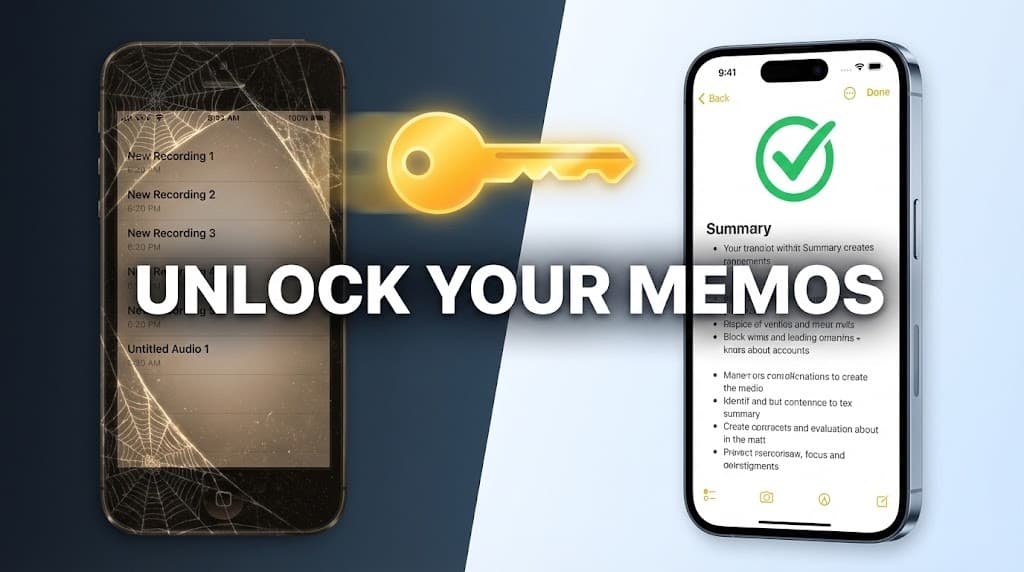
I have a confession to make. My iPhone’s "Voice Memos" app used to be a graveyard.
It was filled with files named "New Recording 14," "New Recording 87," and "Address for the...". I had hundreds of them. And you know how many I listened to again? Zero.
Audio is where information goes to die. It is not searchable. It is not scannable. To find one specific sentence in a 20-minute recording, you have to listen to the whole thing.
In 2025, the goal isn't just to record; it's to convert. You need to turn that raw audio into text, action items, and structured notes. While iOS 18's native transcription is a good start, it often lacks the structure professionals need.
Here is exactly how to convert voice memos to text on iPhone, comparing the new native Apple features against professional AI workflows like UserRecaply. This guide is based on real 2025 tests, comparing on-device privacy with the power of cloud AI structuring.
Key Takeaways
- The Native Limit: iOS 18 adds transcription to Voice Memos, but it produces a "wall of text" without speaker labels or formatting.
- The "Share" Workflow: The fastest way to get usable text is using the iOS "Share Sheet" to send audio directly to an AI app like UserRecaply.
- Unlock Your Archive: Don't let old ideas rot. Batch-exporting your memos can recover lost value—works for files from iOS 17 or earlier.
- Privacy: Apple processes on-device (secure but limited). UserRecaply uses encrypted cloud processing to deliver structured summaries without training on your data.
Table of Contents
- Method 1: Apple Native Transcription (iOS 18+)
- Method 2: The "Share Sheet" Workflow (Best for Pros)
- Method 3: iOS Shortcuts (For Geeks Only)
- Comparison: Native vs. AI Tools (2025)
- 3 Ways to Use Your Transcripts
- FAQ – Common Voice Memo Questions
Method 1: Apple Native Transcription (iOS 18+)
In late 2024, Apple finally added transcription to the Voice Memos app via "Apple Intelligence." Available on iPhone 12 or later, it's free, on-device for privacy, and can auto-transcribe old recordings.
How it works:
- Open Voice Memos.
- Tap a recording to expand it.
- Tap the "Quote" icon (speech bubble) in the bottom left.
- The transcript appears in real-time—editable and searchable.
The Limitation: It gives you a raw stream of consciousness.
- No paragraphs or bolding of key terms.
- No summaries or action items.
- Hard to export (you have to copy-paste the whole block).
- Accuracy dips significantly with heavy accents or background noise.
It's useful for a quick check ("Did he say 4pm or 5pm?"), but bad for productivity.
Method 2: The "Share Sheet" Workflow (Best for Pros)
If you recorded a 10-minute brain dump, you don't want to read 1,500 words of raw text. You want a Summary and Action Items.
This method uses UserRecaply to structure the chaos.
The Steps:
- Open Voice Memos and tap your recording.
- Tap the three dots (...) next to the title.
- Tap Share.
- Select UserRecaply from the list (or "Save to Files" if you prefer to upload later).
- Result: The app processes the file and returns a structured document (e.g., "Project Ideas: 3 Key Tasks") with timestamps and speaker labels.
Note: This works for existing files you recorded months ago, too. UserRecaply handles accents better than the native tool because it uses larger, context-aware AI models.
Method 3: iOS Shortcuts (For Geeks Only)
For the tech-savvy, you can build an iOS Shortcut to send audio to an API (like OpenAI Whisper).
- Pros: Highly customizable, free.
- Cons: Extremely fragile. Updates to iOS often break custom shortcuts, and debugging them on a phone screen is frustrating. We recommend sticking to dedicated apps unless you enjoy coding.
Comparison: Native vs. AI Tools (2025)
Is the built-in feature enough? In 2025, Apple Intelligence is fast, but lacks depth for pros.
| Feature | Apple Native (Voice Memos) | UserRecaply (AI App) |
|---|---|---|
| Cost | Free | Freemium |
| Output | Raw Text Block | Structured Summary + Labels |
| Action Items | No | Yes (Auto-Extracted) |
| Speaker Labels | No | Yes |
| Export Options | Copy-Paste | PDF, TXT, Markdown |
| Best For | Quick Checks (5 sec) | Work & Ideas (>1 min) |
| Accuracy (Accents) | Medium (~85%) | High (95%+) |
| Privacy | On-Device | Encrypted Cloud |
3 Ways to Use Your Transcripts
Once you convert your audio to text, what do you do with it?
1. The "Writer's Block" Cure
Dictate your draft while walking. Convert it to text. You now have a 1,000-word first draft without typing—perfect for editing later. (See our guide on Best Dictation Apps for Writers).
2. The "Brain Dump" Organizer
Record your stress and to-dos. Convert to text to get a clean list of tasks automatically generated by AI. (See our guide on How to Brain Dump).
3. The Meeting Saver
Record an in-person coffee meeting (with permission). Convert to text to get the action items without taking notes manually. (See our guide on Otter.ai Alternatives for more meeting tips).
FAQ – Common Voice Memo Questions
Q: Can I transcribe old recordings from years ago? A: Yes. Use the "Method 2" share workflow. You can export files from 5 years ago and finally see what's inside them.
Q: Does it work if I have a bad accent? A: Apple's native tool struggles with heavy accents (~85% accuracy). UserRecaply uses advanced AI models (similar to WhatsApp transcription tools) that are much more forgiving at 95%+.
Q: Is it private? A: Apple processes fully on-device. UserRecaply uses encrypted cloud processing (essential for heavy AI summarization) but never trains on your data by default.
Stop Hoarding Audio
Your iPhone is a capture tool, not a storage unit.
Don't let your genius ideas die in the "New Recording" graveyard. Convert them, summarize them, and use them.