
How to Transcribe Zoom Recordings to Text (Without the Awkward Bot)
Stop inviting intrusive bots to your client calls. Learn the 'Async Upload' method to transcribe Zoom and Teams recordings securely using AI, keeping your meetings private.
How to Transcribe Zoom Recordings to Text (Without the Awkward Bot) in 2025
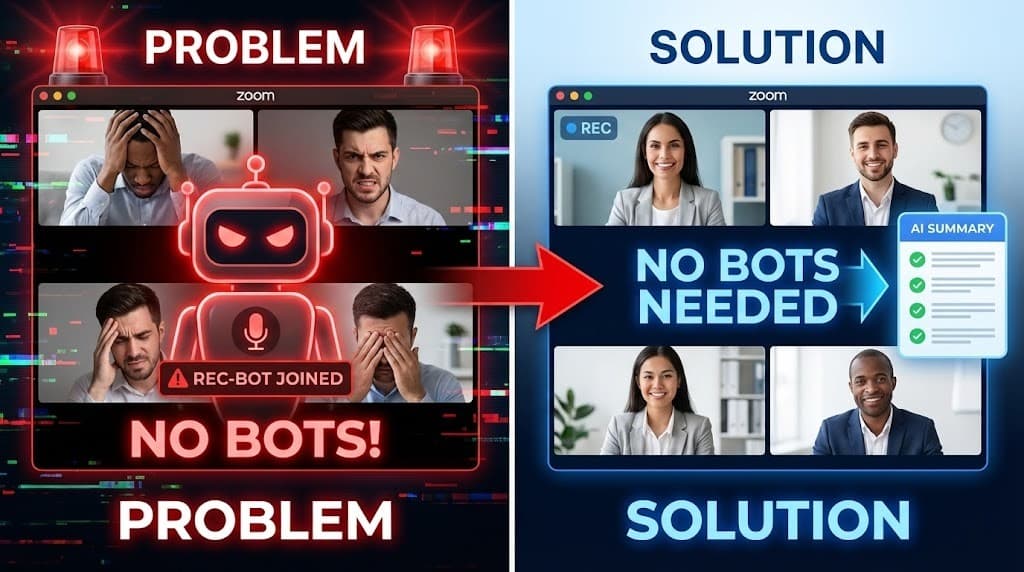
We've all experienced "The Bot Moment."
You're in a sensitive client call or internal strategy session. The flow is natural. Then—ding!—a generic avatar labeled "Notetaker.ai" joins, and a robotic voice announces: "THIS MEETING IS BEING RECORDED."
The conversation shifts. Participants become cautious. They stop sharing honest feedback.
In 2025, intrusive meeting bots are increasingly seen as unprofessional. It's like inviting a court reporter to a casual brainstorming session.
But you still need accurate notes, action items, and transcripts.
The solution? The "Async Upload" method: Record locally (or natively), keep the meeting private, then upload the file to UserRecaply for high-quality transcription and summarization.
This guide shows how to transcribe Zoom, Microsoft Teams, Google Meet, or Webex recordings professionally—without bots.
Key Takeaways
- Bot Fatigue is Real: Intrusive bots disrupt rapport and raise privacy issues.
- Native Limitations: Zoom's built-in transcription requires paid plans and often delivers raw, verbatim text.
- The Privacy Workflow: Local recording → Upload MP4/M4A → Get structured summaries.
- Compatibility: Works with any platform that produces a video or audio file.
Table of Contents
- Method 1: Native Transcription (and Its Limitations)
- Method 2: Bot-Based Tools (Why They're Outdated)
- Method 3: The Async Upload Way (Private & Professional)
- Step-by-Step: Transcribe a Local Zoom Recording
- FAQ: Common Zoom Transcription Questions
Method 1: Native Transcription (and Its Limitations)
Zoom and Teams offer built-in transcription, but it's far from perfect.
Main Issues:
- Paywall & Permissions: Requires Business/Enterprise plans; IT admins often disable cloud features for security.
- Quality: Verbatim text with timestamps—hard to read. It doesn't give you the "Action Items" you need (see our Meeting Minutes Guide).
- Availability: Transcripts can expire (especially in Teams) or be buried in difficult-to-find folders.
Method 2: Bot-Based Tools (Why They're Outdated)
Tools that automatically join via calendar invites were popular in 2023, but are fading in 2025.
Main Issues:
- Disruption: Changes meeting dynamics; awkward announcements.
- Privacy Risks: Many enterprises ban third-party bots due to data leakage concerns.
- Spam: Post-meeting emails sent to your clients without your permission.
- (See our full breakdown in the Otter Alternatives Guide).
Method 3: The Async Upload Way (Private & Professional)
The top choice for consultants, lawyers, and privacy-focused teams.
How It Works: Separate recording from transcription. Use local recording in Zoom/Teams (or even your iPhone placed on the desk), then upload the file to UserRecaply.
Why It Excels:
- No Intrusion: Zero extra participants.
- Full Control: You own the file and decide if it gets processed.
- Superior AI: Better speaker diarization and clean summaries compared to generic native tools.
Comparison: Which Method Wins?
| Feature | Zoom Native | Meeting Bot | UserRecaply (Async) |
|---|---|---|---|
| Privacy | Medium (Cloud) | Low (Third Party) | High (You control file) |
| Meeting Vibe | Neutral | Awkward (Bot joins) | Invisible |
| Output | Raw Text | Transcript | Structured Summary |
| Setup | Admin Rights | Calendar Sync | Drag & Drop |
Step-by-Step: Transcribe a Local Zoom Recording
Turn a recording into actionable notes in minutes.
Step 1: Locate Your Local Recording
- Windows/Mac: Typically in
Documents > Zoomfolder. - Files You'll See:
video.mp4(large),audio_only.m4a(smaller),playback.m3u(ignore). - Tip: Use the .m4a file. It uploads faster and contains the exact same audio quality.
Step 2: Upload to UserRecaply
Drag-and-drop the .m4a file into the dashboard.
Step 3: Speaker Identification
Specify the number of speakers (e.g., 3 people) to help the AI separate "Client" from "Project Manager."
Step 4: Export Structured Output
Get more than raw text. UserRecaply generates:
- Executive Summary: A paragraph explaining what happened.
- Decisions: "Budget approved for Q3."
- Action Items: "John to send contract by Friday."
FAQ: Common Zoom Transcription Questions
Q: Is recording client calls legal? A: Always get consent. Announce verbally: "Mind if I record locally for my personal notes?" It is accepted 99% of the time because it benefits them (you will send them the summary).
Q: Works with Google Meet recordings? A: Yes—Google Meet saves recordings to Drive. Download the MP4, upload to UserRecaply.
Q: What if I forgot to record? A: No recovery possible. Make "Start Recording" a habit or set Zoom to "Auto-Record Local" in settings.
Q: Can I use this for long workshops (3 hours)? A: Yes. Async tools handle large files much better than real-time browser bots that often crash on long calls.
Keep Meetings Human in 2025
Technology should enhance conversations—not interrupt them.
Ditch the awkward bot. Record privately, transcribe securely, and stay professional.